
Help from Acura of Columbus for Drivers in Auburn and Opelika
If you’re searching for Acura Wi-Fi hotspot setup, you’re likely sitting in your vehicle thinking, “I know this can do it… I just need it to work.” You’re not alone. Acura’s built-in Wi-Fi hotspot is one of those features that’s incredibly useful once it’s set up, but not always obvious the first time.
At Acura of Columbus, we help drivers from Columbus, Auburn, and Opelika get the most out of their Acura technology every day. This guide walks you through exactly how to set up your Acura Wi-Fi hotspot, step by step, so you can connect phones, tablets, laptops, and other devices with confidence.
What Is the Acura Wi-Fi Hotspot?
The Acura Wi-Fi hotspot turns your vehicle into a mobile internet hub, allowing multiple devices to connect while you’re on the road. It’s especially useful for:
-
Passengers streaming or browsing
-
Kids using tablets on longer drives
-
Remote work between Auburn and Columbus
-
Navigation updates and connected services
Many newer Acura models come equipped with this feature, and it works independently of your phone’s data plan.
Before You Start: What You’ll Need
Before setting up your Acura Wi-Fi hotspot, make sure you have:
-
Your Acura powered on or in accessory mode
-
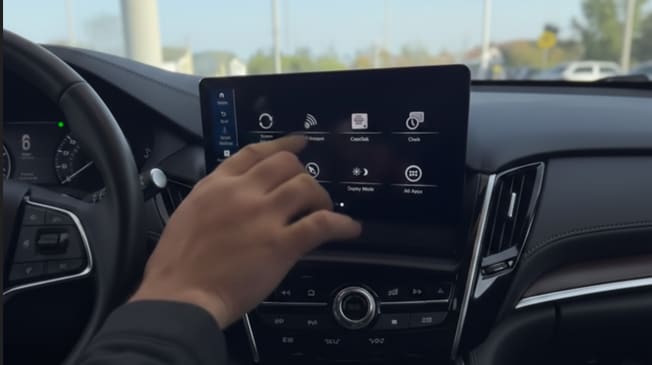
A compatible Acura model with built-in Wi-Fi capability (you will see the WiFi hotspot icon in your infotainment if available) usually on 2020 or newer models
-
An active or trial data plan associated with your vehicle
-
A phone, tablet, or laptop ready to connect
If the hotspot isn’t appearing, the vehicle may need activation or a subscription setup.
Step-by-Step: How to Set Up Your Acura Wi-Fi Hotspot
Step 1: Turn the Vehicle On
Start your Acura or place it in accessory mode. The infotainment system must be fully powered for Wi-Fi settings to appear.
Step 2: Access the Infotainment Settings Menu
On the center display:
-
Select Settings
-
Navigate to Connections or Network & Internet
-
Choose Wi-Fi Hotspot
Menu names may vary slightly by model year, but the path is similar across Acura vehicles.
Step 3: Turn the Wi-Fi Hotspot On
Once inside the Wi-Fi hotspot menu:
-
Toggle the hotspot ON
-
Wait a few seconds for the system to activate
You should now see:
-
Network name (SSID)
-
Password
This is the information your devices will use to connect.
Step 4: Customize Your Network Name and Password
For security and convenience, you can change the default settings.
-
Select Edit Network Name to personalize it
-
Select Change Password to create something easier to remember
This is helpful if multiple family members or devices will connect regularly.
Step 5: Connect Your Devices
On your phone, tablet, or laptop:
-
Open Wi-Fi settings
-
Select your Acura’s network name
-
Enter the password shown on the vehicle screen
Once connected, the device should show an active internet connection.
Step 6: Confirm Devices Are Connected
This helps ensure everything is working properly.
Common Acura Wi-Fi Hotspot Troubleshooting
Hotspot Not Showing Up
-
Make sure the vehicle is fully powered on
-
Restart the infotainment system
-
Confirm the hotspot feature is enabled in settings
Device Won’t Connect
-
Double-check the password
-
Forget the network on your device and reconnect
-
Restart your device
Internet Connected but Not Working
-
Confirm the data plan is active
-
Move to an area with better cellular coverage
-
Restart the vehicle and try again
Drivers traveling between Opelika and Auburn may notice signal strength varies by location.
Acura Wi-Fi Hotspot Tips for Everyday Use
-
Turn the hotspot off when not in use to reduce background activity
-
Change the password periodically for security
-
Limit the number of connected devices for better performance
-
Ideal for road trips, carpools, and work-from-the-car moments
Why Acura Owners Use the Wi-Fi Hotspot Feature
Acura drivers value technology that works quietly in the background. The Wi-Fi hotspot fits that mindset by offering:
-
Convenience without cables
-
Connectivity without relying on phone hotspots
-
A smoother experience for passengers
It’s one of those features that becomes hard to live without once you use it regularly.
FAQ: Acura Wi-Fi Hotspot Setup
How do I turn on my Acura Wi-Fi hotspot?
You can turn it on through the infotainment system under the network or connection settings.
Do I need a subscription for Acura Wi-Fi?
Most vehicles include a trial period. Continued use typically requires an active data plan.
How many devices can connect to an Acura Wi-Fi hotspot?
Most systems support multiple devices at once, making it ideal for families or work use.
Why won’t my Acura Wi-Fi connect?
Common causes include inactive subscriptions, incorrect passwords, or weak cellular signal.
Can I use Acura Wi-Fi while driving?
Yes. The hotspot is designed to work while the vehicle is in motion.
Get Help with Acura Technology at Acura of Columbus
If you’re still having trouble with Acura Wi-Fi hotspot setup, or want a walkthrough in person, our team at Acura of Columbus is happy to help. We regularly assist drivers from Columbus, Auburn, and Opelika with Acura technology features, from connectivity to driver-assist systems.
Stop by or schedule a visit and we’ll make sure your Acura is fully connected and ready to go.
